
Vague client emails are common at the start of service work. A client asks for a “quick update,” a “more modern website,” a “simple campaign,” or “a few changes” without giving enough context to scope the work, price it, or brief the team.
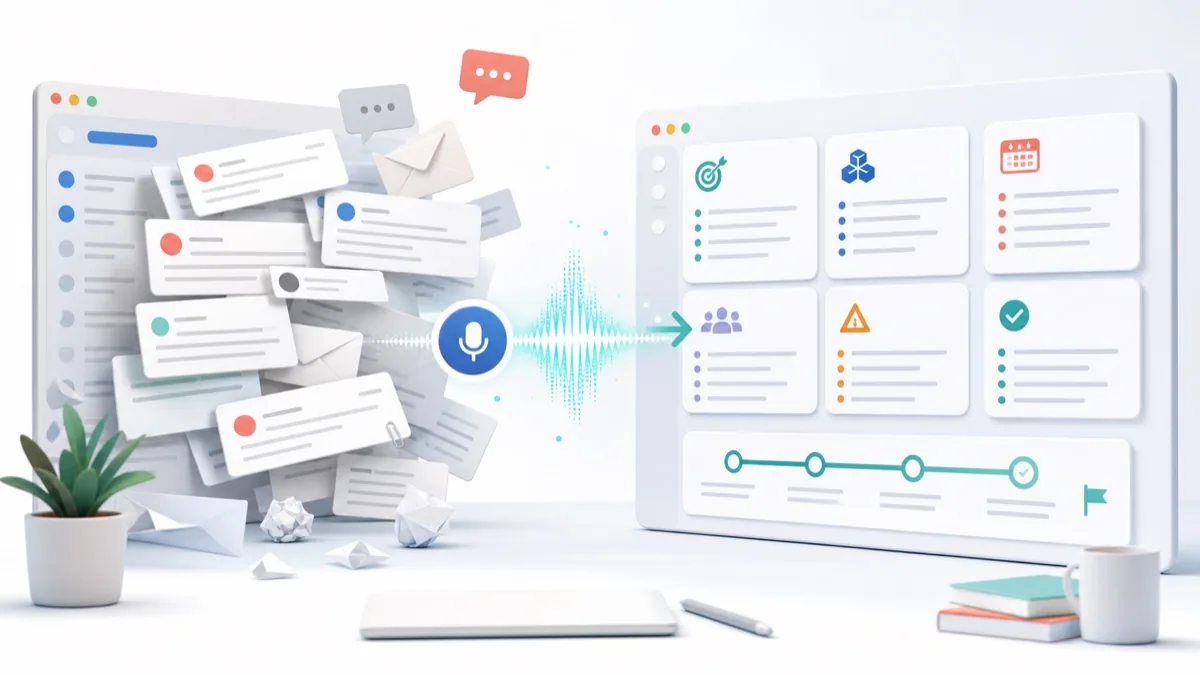

Explore voice, client feedback and clearer project context.
Vague client emails are common at the start of service work. A client asks for a “quick update,” a “more modern website,” a “simple campaign,” or “a few changes” without giving enough context to scope the work, price it, or brief the team.
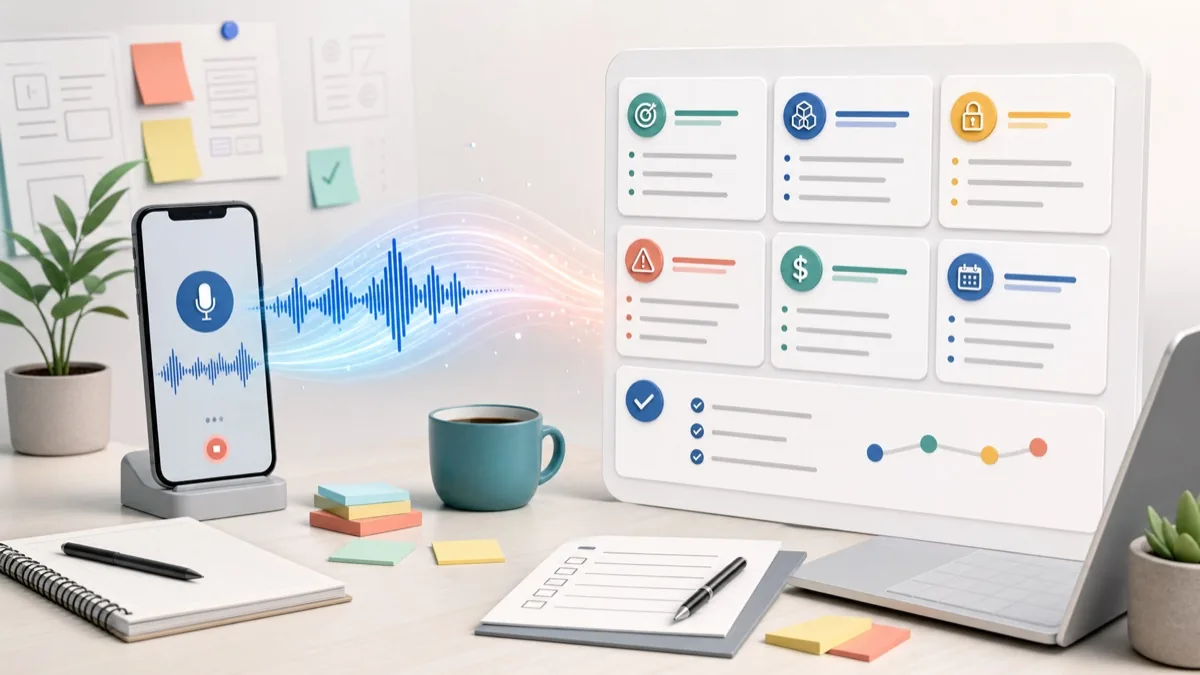
Client intake forms are useful when the questions are simple and the client has time to write. They are weaker when the project is messy, the client is unsure what matters, or the real context is trapped in scattered emails, screenshots, voice notes and meetings.
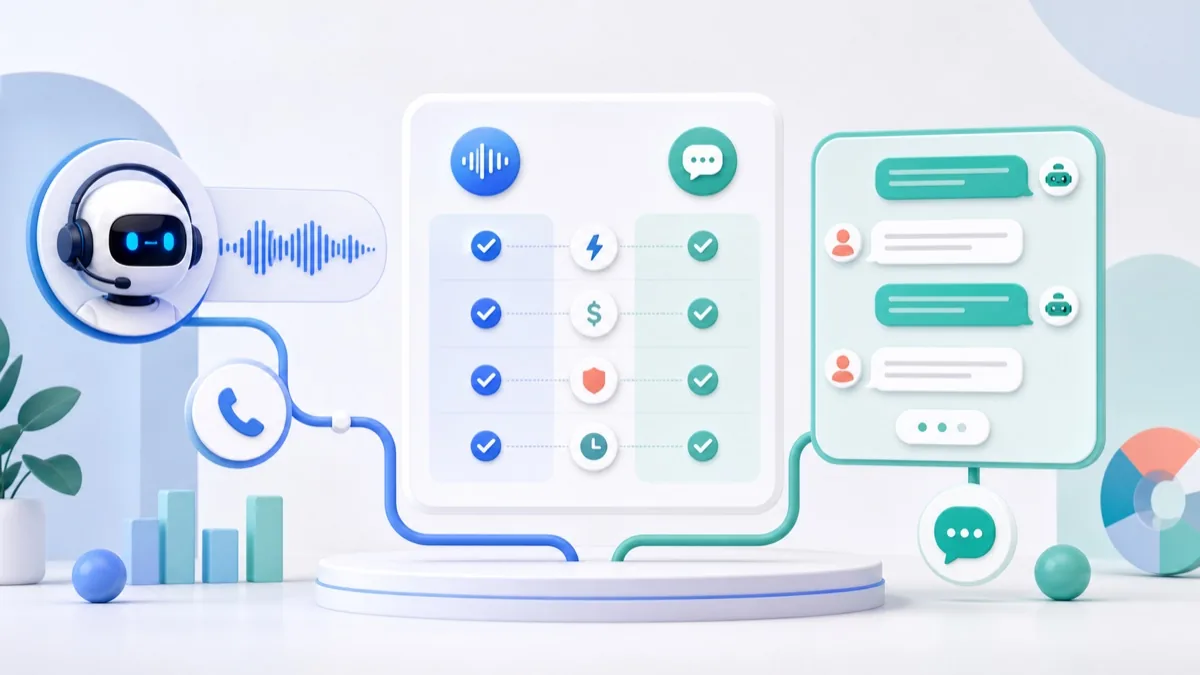
AI voice agents are getting good enough to feel like a real product surface, not a demo. Chatbots are also still useful because they are cheaper, easier to review, easier to search and easier to hand off to humans. The right choice is not “voice is better” or “chat is safer.” The right choice depends on the job your user is trying to finish.
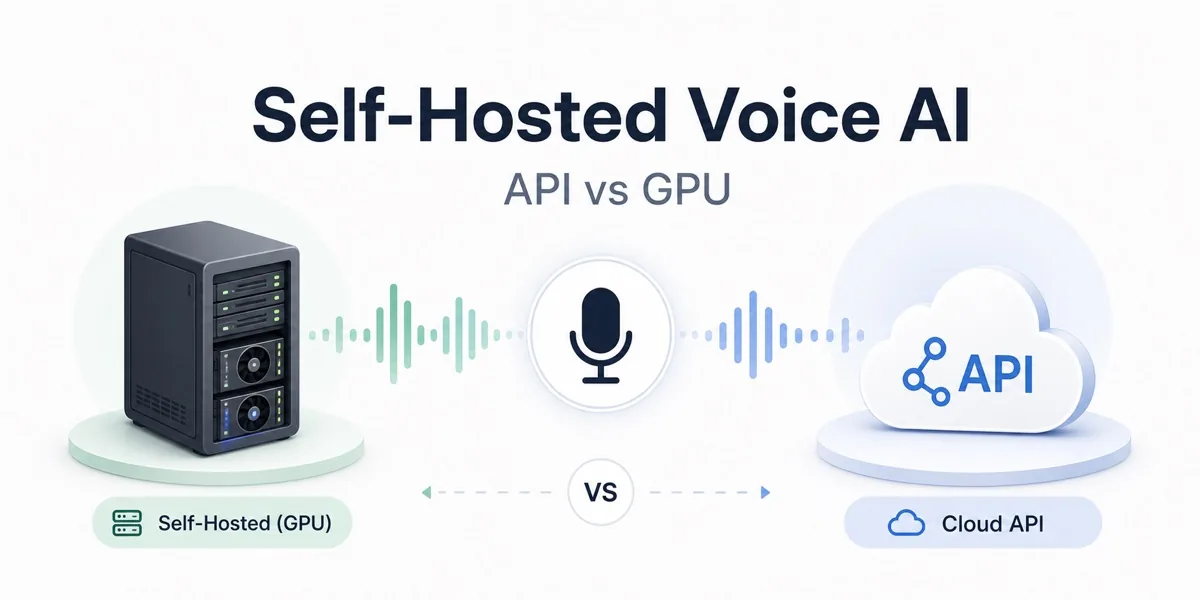
Voice AI is now realistic for small teams, not just research labs. You can transcribe voice memos, summarize calls, search audio notes, generate replies and even build voice agents with public APIs or open-source models. The real question is no longer “is it possible?” but “which parts should you host yourself, and which parts should stay API-first?”

Ever found yourself wanting to leave a message without the back and forth of a phone call? Maybe you’re tired of drafting long emails or navigating time zones for calls. If so, you’re not alone.
In the world of digital communication, an email signature is more than a formality – it’s a powerful tool to establish your brand, professionalism and to make communication easy. With the rise of asynchronous communication tools like VocalJet an email signature is even more important. It’s your digital business card and the gateway to voice based communication.

To transfer an iPhone voice memo to a PC, export the recording to Files → iCloud Drive, then download that file from iCloud Drive in your PC browser. For a small recording, emailing yourself the audio attachment is another option.

To send a voice recording, share the saved audio file through email or an app the recipient uses. If the file is too large for that channel, upload it to a suitable file service and send a link after checking the access settings.

To send a long voice memo, check the exported file’s size and the limit of the channel you plan to use. Recording duration alone does not determine whether it can be sent. When an attachment is too large, use a suitable file-sharing link.
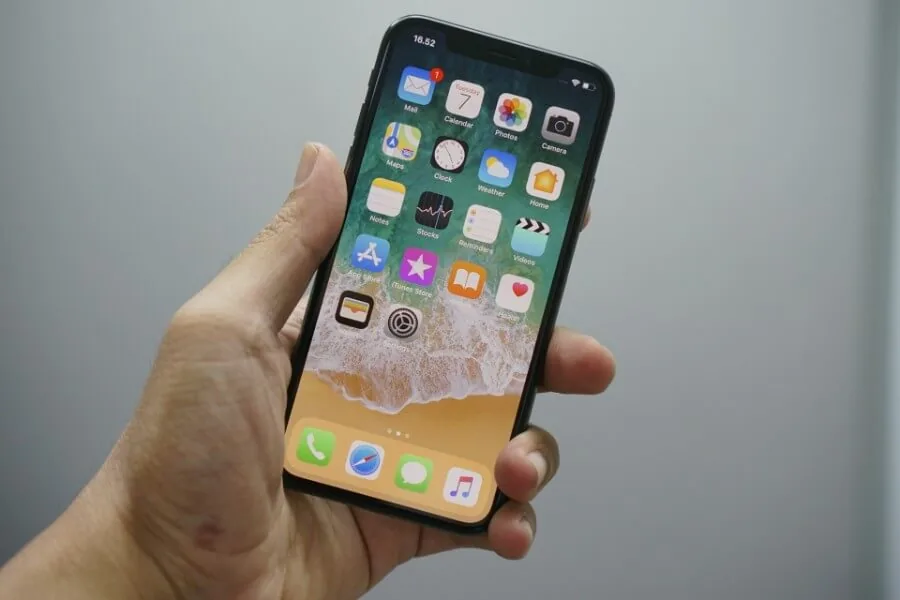
To send an existing iPhone voice memo, select it in Voice Memos, open More Actions → Share, then choose Mail, Messages or another available app. To record directly in a conversation, use the separate Audio feature in Messages.